A computer is five internal components working together: the Central Processing Unit (CPU) that runs instructions, the Random-Access Memory (RAM) that holds whatever is running right now, the Graphics Processing Unit (GPU) that draws the image on a screen, a storage drive that keeps files while the power is off, and the motherboard that connects all four. A monitor, keyboard, mouse or microphone is a peripheral, not a component: it plugs into a port on the motherboard and is not part of the computer itself.
Most numbers on a specification sheet are one of three kinds: a count such as cores, a size such as gigabytes, or a rate counted in hertz. The rate comes first below, because the same unit turns up in the CPU, the memory, the graphics card and the monitor.
The five components at a glance
| Component | What it does | Numbers on its specification sheet |
|---|---|---|
| CPU | Runs the instructions of every program | Cores, threads, GHz |
| RAM | Holds the data programs are using now, and loses it at power-off | Gigabytes, megatransfers per second |
| Motherboard | Connects every other part and provides the ports | Socket, slots, ports |
| GPU | Draws images and does large batches of parallel arithmetic | Video memory, MHz |
| Storage | Keeps files with the power off | Gigabytes, drive type |
Hertz: Hz, kHz, MHz and GHz
The hertz (Hz) is the unit of frequency, and one hertz is one repetition per second. Anything that repeats on a steady beat can be counted in it: the tick of a CPU clock, the redraw of a monitor, the wave of a radio signal. The prefixes are the usual metric ones.
| Unit | Symbol | Repetitions per second |
|---|---|---|
| Hertz | Hz | 1 |
| Kilohertz | kHz | 1,000 |
| Megahertz | MHz | 1,000,000 |
| Gigahertz | GHz | 1,000,000,000 |
A 144 Hz monitor redraws its image 144 times per second, and a 3 GHz CPU clock ticks three billion times in the same second. Near Field Communication (NFC) cards talk at 13.56 MHz and Bluetooth radios work around 2.4 GHz, so the same unit shows up on sheets for products that have nothing else in common.
A bigger hertz number means more repetitions in the same second. It says nothing about how much gets done in each one, and that gap matters most for the CPU.
CPU: cores, threads and clock speed
The Central Processing Unit (CPU) is the processor that carries out the instructions of every program, so it sets how fast everything else can be asked to work. Three numbers describe it: cores, threads and clock speed.
A core is one complete processing unit inside the CPU, and a six-core CPU can follow six streams of instructions at the same moment. Work that can be split, such as several programs open together or a video being encoded, spreads across cores. A single task that cannot be split runs on one core however many others are idle.
A thread is one stream of instructions that a core works on. Many CPUs let each core hold two at once, a design Intel markets as Hyper-Threading and that is known generally as simultaneous multithreading (SMT), so the operating system sees twice as many logical CPUs as there are cores.
The terminal captures on this page come from one Linux laptop with an Intel Xeon E-2176M, 16 gigabytes (GB) of memory, an NVIDIA Quadro P1000 graphics chip and a Non-Volatile Memory Express (NVMe) drive.
lscpu is the command that reports the CPU, and filtering it to three lines gives the counts.
lscpu | grep -E 'Thread|Core|Socket'
The clock speed is how many cycles per second the cores run, counted in GHz, and a CPU has three figures for it rather than one.
The base speed is the figure the CPU is rated to sustain, which is the 2.70GHz at the end of this CPU's model name, printed by lscpu | grep 'Model name'.
The maximum is the highest speed the CPU reaches for short periods when the work and the temperature allow, and lscpu lists it as CPU max MHz.
The current speed changes all the time, because the CPU drops to a low figure when idle to save power and climbs when there is work.
lscpu -e=CPU,CORE,MAXMHZ,MINMHZ,MHZ
The -e flag prints one row per logical CPU: its number, the core it belongs to, then the maximum, the minimum and the current speed in MHz.
CPU 0 and CPU 6 both list core 0, which is two threads on one core.
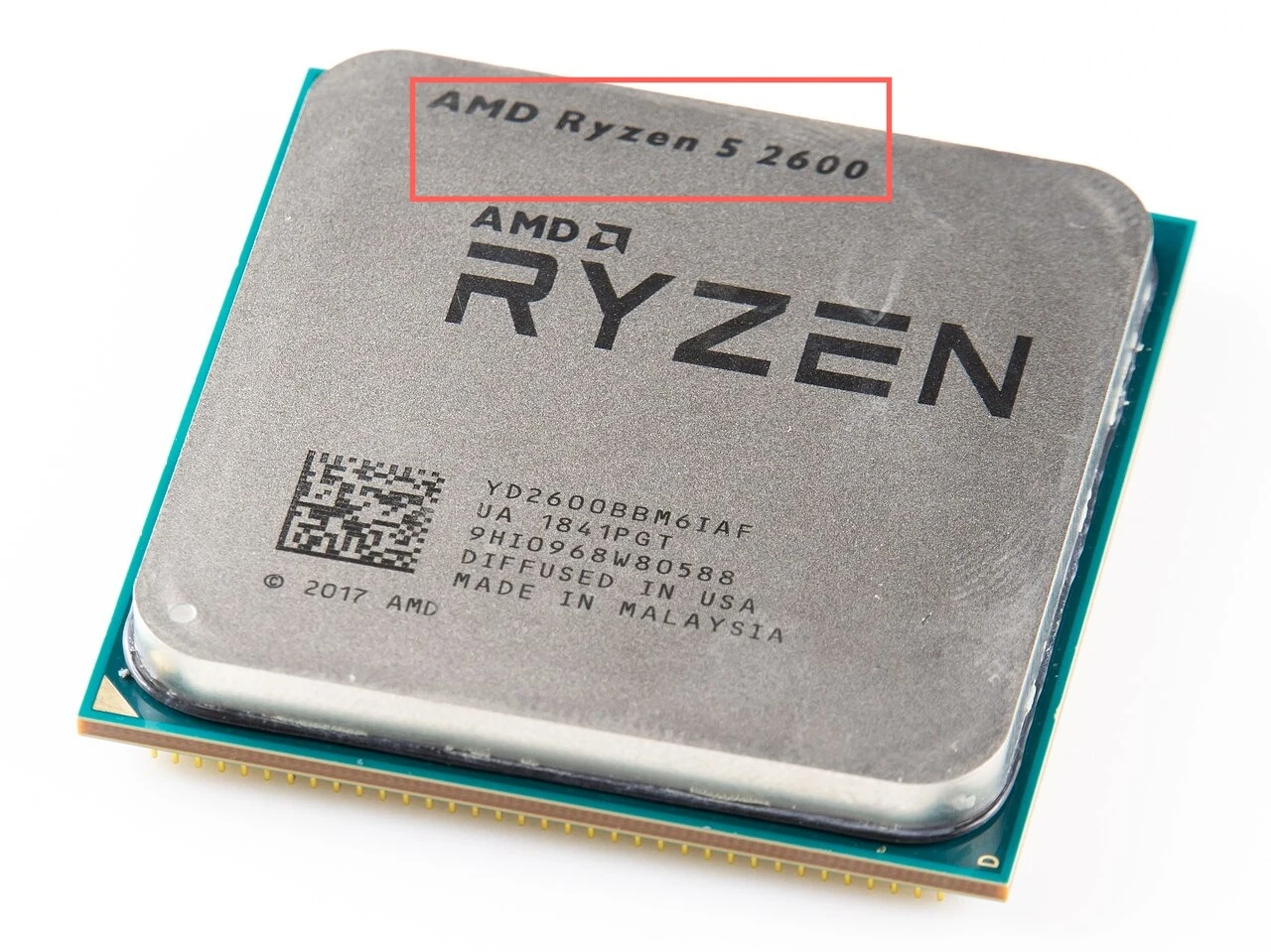
Compare GHz only between processors of the same family. The figure counts cycles, and how much work one cycle does differs between designs and between generations, so a spec sheet's clock speed and core count say less than a measurement of the actual work.
On Windows, press Ctrl+Shift+Esc to open Task Manager, choose Performance, then CPU.
The page names the processor and lists Base speed, Sockets, Cores and Logical processors, and it shows the current Speed as well.
The same figures come from PowerShell, where MaxClockSpeed is in MHz, so 3000 means 3 GHz.
Get-CimInstance Win32_Processor |
  Select-Object Name, NumberOfCores, NumberOfLogicalProcessors, MaxClockSpeed
RAM: capacity and speed
Random-Access Memory (RAM) is the fast, temporary memory that holds the data a program is using right now. It is volatile: everything in it is lost when the power goes off, which is why a document never saved to the drive does not survive a power cut.
Capacity is counted in GB, and modules usually come in doubling sizes: 4, 8, 16, 32 and 64 GB. More capacity lets more programs and larger files stay in memory at once, and when it fills the operating system starts moving data to the drive, which is far slower.
lsmem --summary
Speed is the unit most often misnamed on memory. RAM is Double Data Rate (DDR) memory, which moves data twice per clock cycle, once as the signal rises and once as it falls, so its speed is better counted in megatransfers per second (MT/s), where one megatransfer is a million transfers. A module labelled DDR4-3200, or sold as 3200 MHz, does 3200 MT/s on a clock of 1600 MHz.
DDR4 and DDR5 are separate generations and do not fit each other's slots, because the key notch in the gold contacts sits in a different place. A desktop uses a dual in-line memory module (DIMM), and a laptop uses a shorter Small Outline DIMM (SO-DIMM), which is a different size and does not fit a desktop slot.

On Linux, sudo dmidecode -t memory lists the size, type and speed of each installed module, and it needs root.
On Windows, Task Manager's Performance tab has a Memory page with the total, the Speed, the Slots used and the Form factor, which reads DIMM or SODIMM.
Motherboard: sockets, slots and ports
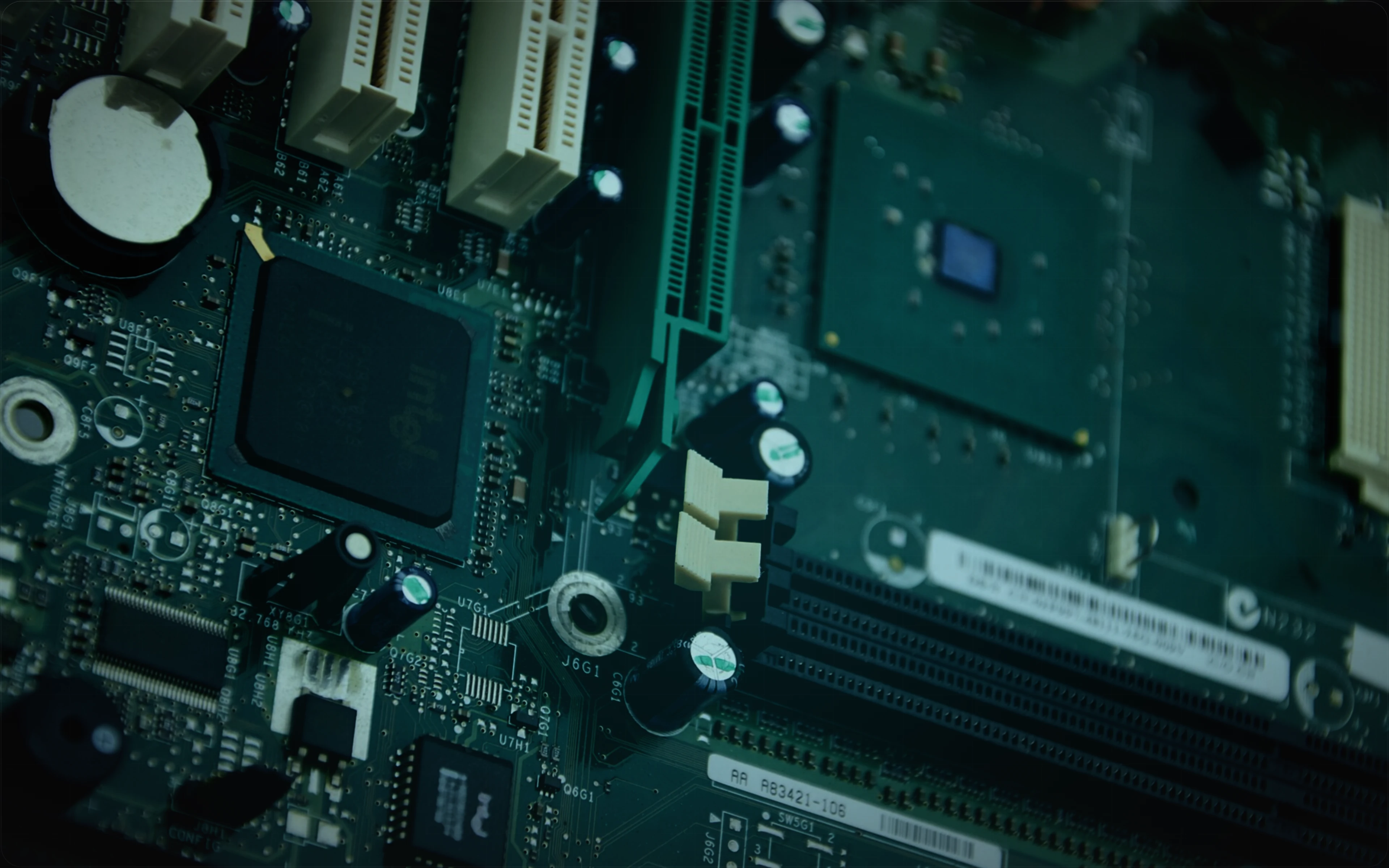
The motherboard is the main circuit board. Every other component plugs into it or connects to it by cable, and it carries the data between them and supplies them with power.
On it sit the socket the CPU is fitted into, the slots for memory, expansion slots for cards such as a GPU, connectors for storage drives, and the ports on the back or side of the machine: USB, display outputs and audio jacks.
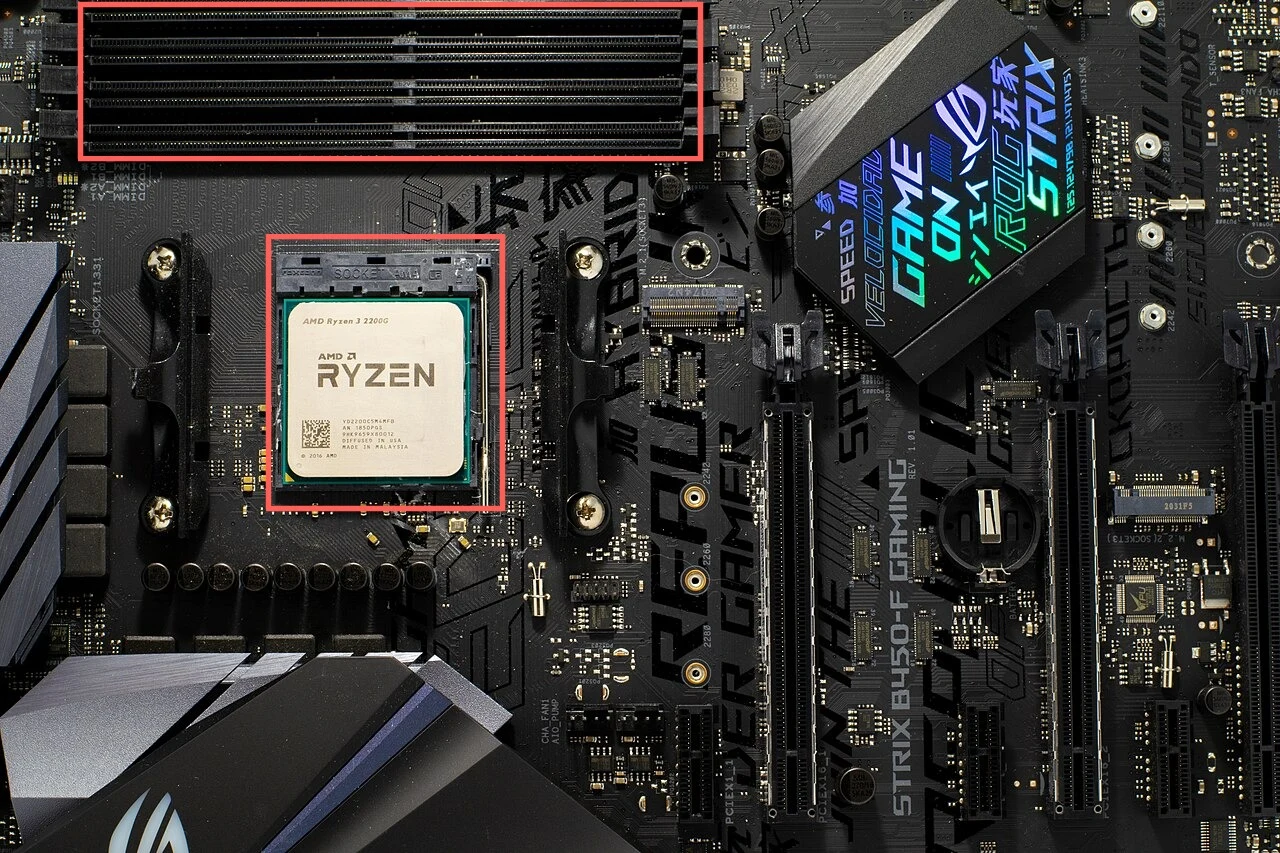
The socket decides which CPUs fit and the memory slots decide which RAM generation fits, so those are the two lines to check first when building a computer. A prebuilt computer or a laptop arrives with both decisions already made.
On Linux, this prints the maker and model of the board:
cat /sys/class/dmi/id/board_vendor /sys/class/dmi/id/board_nameOn Windows, PowerShell reports the same two fields:
Get-CimInstance Win32_BaseBoard | Select-Object Manufacturer, ProductGPU: dedicated and integrated graphics
The Graphics Processing Unit (GPU) is a processor built to do many similar calculations at once, which is what drawing an image, rendering 3D scenes and editing video all require. A dedicated GPU is a separate chip, usually on its own card, with its own memory. An integrated GPU sits inside the CPU and shares the system's RAM, which is enough for the desktop, web pages and video playback.
The memory on a dedicated GPU is called video random-access memory (VRAM), and it holds the textures and frames the GPU is working on. Its capacity is counted in gigabytes, and the GPU has a clock counted in MHz like the CPU does.
nvidia-smi --query-gpu=name,memory.total,clocks.gr,clocks.max.gr --format=csv,noheader
nvidia-smi is NVIDIA's own tool.
For any vendor, lspci | grep -E 'VGA|3D' lists the graphics devices by name.
On Windows, Task Manager's Performance tab shows each GPU with its Dedicated GPU memory.
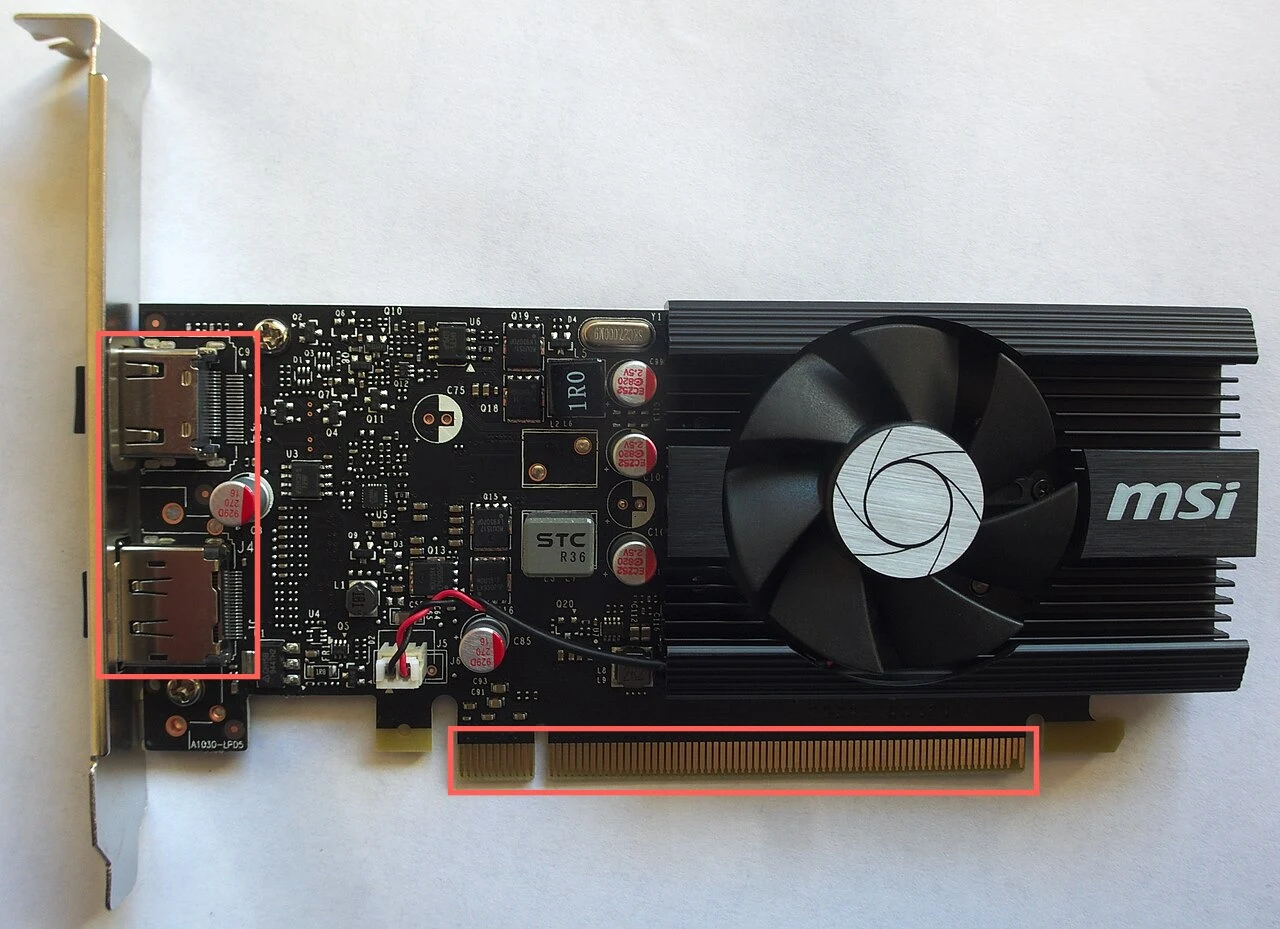
A card connects to the motherboard through a Peripheral Component Interconnect Express (PCIe) slot, and a PCIe x16 slot, which has sixteen data lanes, supplies up to 75 W. A card that needs more than that has its own power connector, wired to the power supply unit (PSU), which makes the PSU's wattage part of choosing a GPU.
Storage: hard disk drives and solid-state drives
Storage keeps data while the power is off.
A hard disk drive (HDD) stores data magnetically on spinning platters, and an arm carries read and write heads across them. It is typically cheaper per gigabyte than an SSD, so it suits bulk files such as photos and video archives, but the moving parts make it slower and a knock while it spins can damage it.
A solid-state drive (SSD) stores data in flash memory chips and has no moving parts. It loads programs far faster than a hard disk drive can, so the operating system and the programs used every day belong on one.
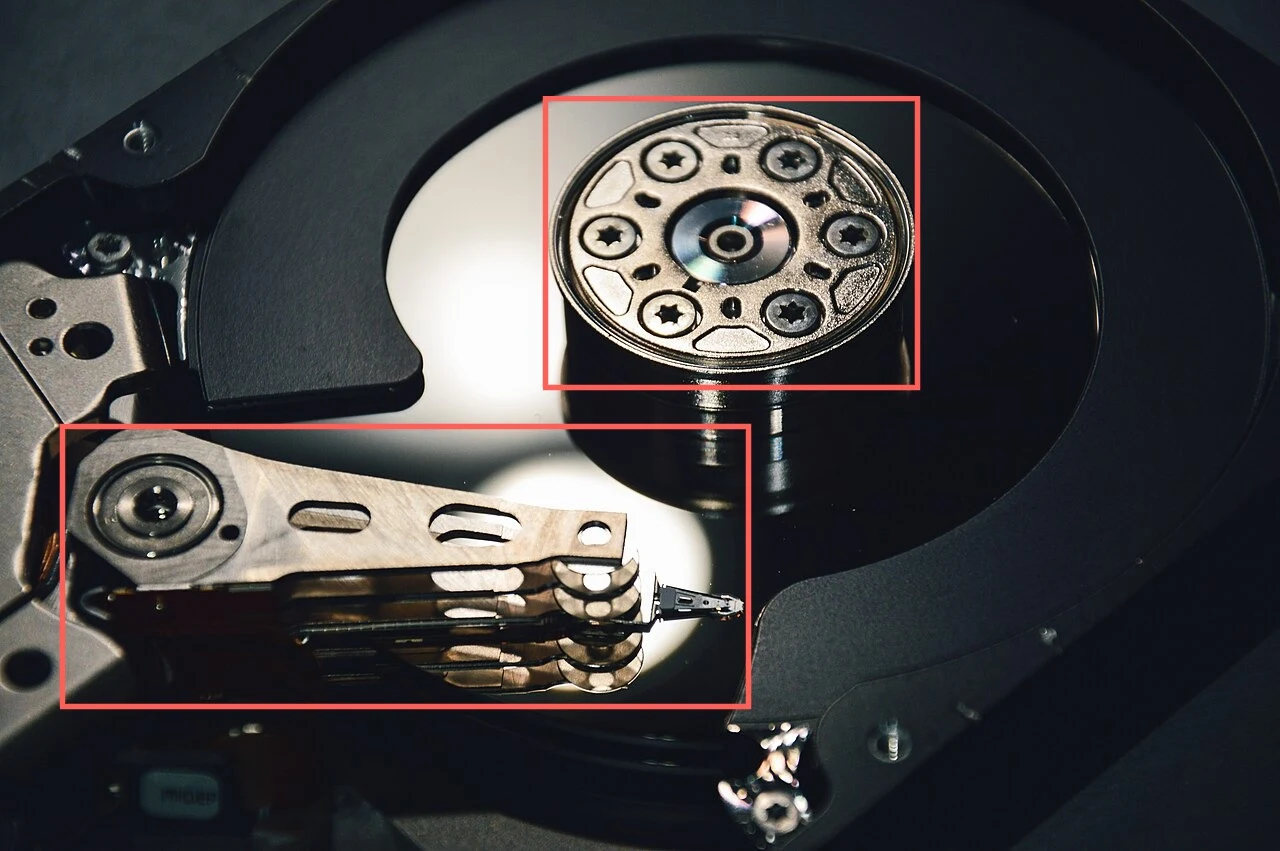
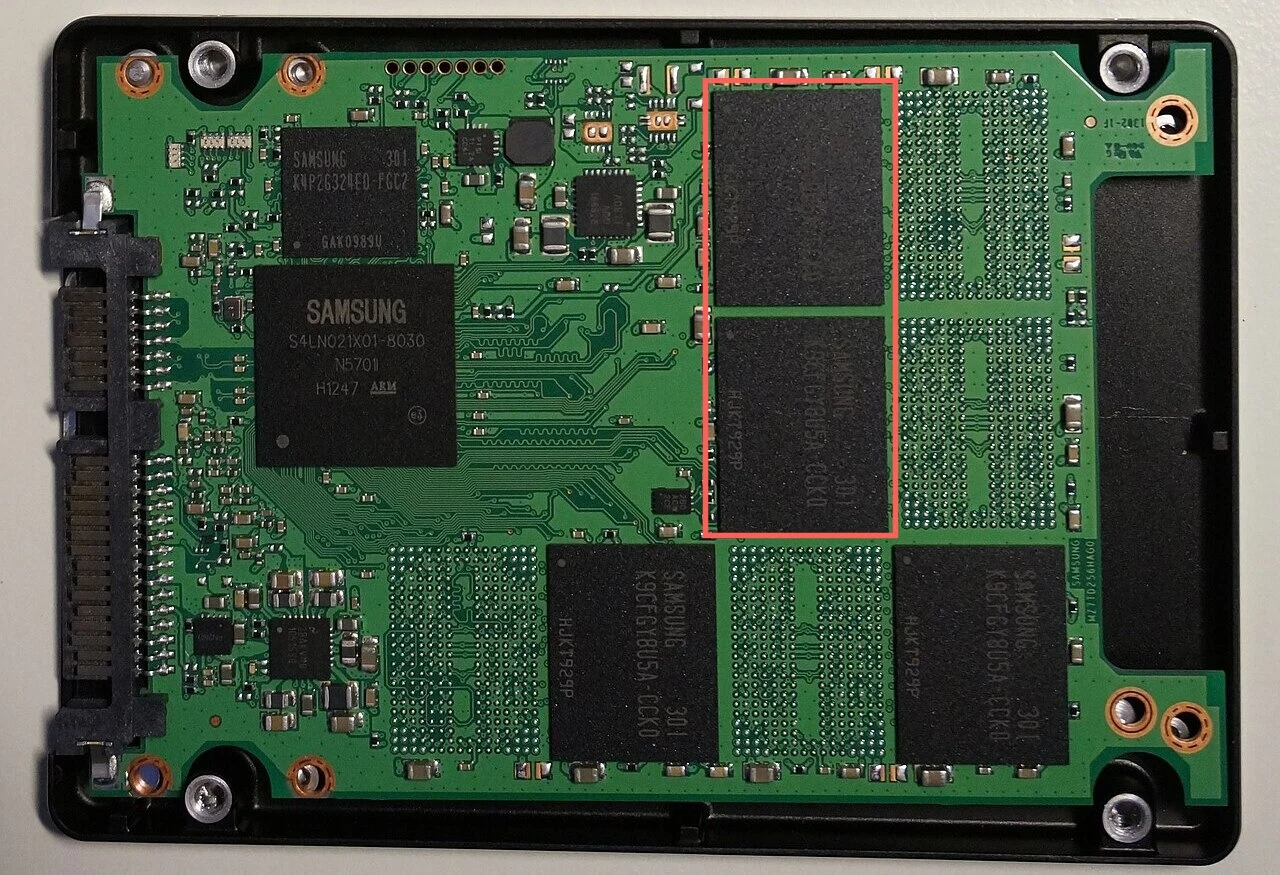
Linux can tell the two apart without opening anything, because the ROTA column of lsblk is 1 for a drive with a rotating platter and 0 for one without.
lsblk -d -o NAME,ROTA,SIZE
NVMe drives usually plug straight into an M.2 slot on the motherboard, while hard disk drives and many older SSDs connect through a Serial AT Attachment (SATA) cable.
On Windows, Task Manager's Performance tab has a Disk page for each drive, and PowerShell lists the media type:
Get-PhysicalDisk | Select-Object FriendlyName, MediaType, SizeCompatibility checks before buying or building
When parts are bought separately, four pairs have to match, and the last column names where each one is stated.
| Part | Has to match | Where it is stated |
|---|---|---|
| CPU | The motherboard's socket name | CPU and motherboard sheets |
| RAM | The board's memory generation (DDR4 or DDR5) and module size (DIMM or SO-DIMM) | Motherboard sheet |
| GPU | A PCIe x16 slot, and the power connectors the card lists | Card sheet, power supply sheet |
| Storage | A free M.2 slot or a SATA port, whichever the drive uses | Motherboard sheet |